


- Captioning
How to Make Captions and Subtitles Bigger on YouTube
•
Automate Your YouTube Captioning [Learn About the Integration]
This multi-part blog series will highlight three valuable accessibility features for YouTube captions and subtitles. In our first blog of the series, we’ll discuss how to make captions and subtitles bigger on YouTube.
How to Make Captions and Subtitles Bigger on YouTube
Did you know you can customize how captions and subtitles appear on YouTube? The ability to adjust caption size is essential to video accessibility, as not everyone prefers reading the same size text.
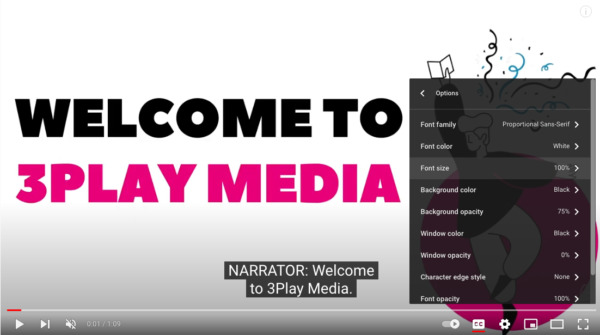
Making captions bigger or smaller on YouTube is easy. At the bottom right of your video player, click Settings, Subtitles/CC, and then Options. From here, you can customize:
- Font, color, opacity, and size
- Background color and opacity
- Window color and opacity
- Character edge style
Additionally, you can use keyboard shortcuts to adjust caption size. Keyboard shortcuts give access to people who can’t rely on a mouse, including people who are blind or have low vision and people with motor disabilities.
Using your C key, you can turn captions on or off. To increase the size of the captions, use the + (plus) key. To decrease the size of the captions, use the – (minus) key.
Please note that these tools will only work when a video owner has made captions available through YouTube’s auto-captions or their own caption files.
Filed under
About the author

Share this page
Related Posts
-
 Read more: A University Guide to Budgeting and Auditing for ADA Video Compliance
- Legislation & Compliance
A University Guide to Budgeting and Auditing for ADA Video Compliance
-
 Read more: Everything to Know About the Americans with Disabilities Act (ADA) and Video Compliance
- Legislation & Compliance
Everything to Know About the Americans with Disabilities Act (ADA) and Video Compliance
-
 Read more: Subtitling vs. Dubbing: Which is Right for Your Audience?
- Subtitling
Subtitling vs. Dubbing: Which is Right for Your Audience?