


- Captioning
How to Add Captions and Subtitles to Instagram TV
•

Instagram was among the top three most popular video platforms of 2017. In the same year, online video accounted for 74% of all online traffic. By 2019, 80% of the world’s internet traffic will be video. With more and more video being created and published online, the popularity of Instagram will likely increase.
Social Video Trends

While you may have thought of captions as being for d/Deaf and hard of hearing individuals, 80% of people who use captions are hearing. This may be due in part to the increasing trend of silent videos on social media.
As you can see, new trends in video – especially social video – impact trends in captioning and accessibility, too. Instagram’s latest development, Instagram TV (IGTV) features longer videos. If you want to get in on this new development, we suggest you add captions to make your videos accessible.
Instagram TV

Before you get started, here are some other requirements to keep in mind when creating content for IGTV:
- Videos must be between 15 seconds and 10 minutes long.
- (Larger and verified accounts can upload videos up to 60 minutes long from a computer.)
- Videos must be in MP4 file format.
How to Add Captions to Instagram TV
Step 1: Create or Upload a Transcript of Your Video
Begin by logging into your 3Play Media account.
From the Upload tab at the top of the screen, select the method you are going to use to upload your video – From Computer, From Links, From Linked Account, or Cloud Storage. Next, choose your video and follow the prompts.
- If you already have a transcript you can simply align that transcript with the video to create open captions. After uploading your video, select Alignment in Options and follow the on-screen prompts.
- If you do NOT have an existing transcript you will need to order transcription for open captions. Upload your video, and select English Transcription and Captioning in Options and follow the on-screen prompts.
You’ll receive an email when transcription is complete.
Step 2: Order Open Captions
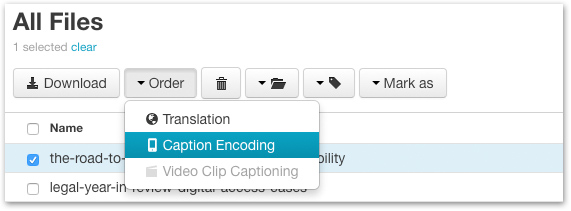
Once your video transcript is ready, click on the file, go to Order > Caption Encoding and select Source w/ Open Captions. Click Next and follow the on-screen prompts.
You’ll receive an email when the caption encoded video is ready to download.
Step 3: Post Your Captioned Video on Instagram TV
Once your video is ready for download, all you have to do is post it to IGTV! You can do this from the Instagram App, the IGTV App, or from Instagram.com by following the instructions below.

How to Add Subtitles to Instagram TV
If you want to add subtitles for other languages to your Instagram videos, submit your video for translation after it’s been transcribed.
To do this, click on your video file from the My Files page.
Select Order > Translation.
Once your translation is complete, navigate to Translations under My Files, and follow these instructions from Step 2 above to encode subtitles into your video, then continue to Step 3 to post your video to Instagram TV.
Your IGTV videos are ready to play with captions or subtitles. Sit back, and relax, while everyone can enjoy your video!

Filed under
About the author

Share this page
Related Posts
-
 Read more: A University Guide to Budgeting and Auditing for ADA Video Compliance
- Legislation & Compliance
A University Guide to Budgeting and Auditing for ADA Video Compliance
-
 Read more: Everything to Know About the Americans with Disabilities Act (ADA) and Video Compliance
- Legislation & Compliance
Everything to Know About the Americans with Disabilities Act (ADA) and Video Compliance
-
 Read more: Subtitling vs. Dubbing: Which is Right for Your Audience?
- Subtitling
Subtitling vs. Dubbing: Which is Right for Your Audience?